| Wallet Backup - Every time a "New Z (Private) address" is generated, more than 100 T (Transparent) addresses are generated or if a key is imported, the wallet.dat file should be backed up. |
|---|
| 1 |
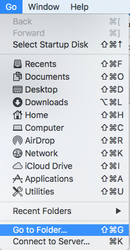
Close the wallet application if it is running Open the Finder application Click on the Go menu item at the top, click on "Go to Folder..." or press Shift+Command+G
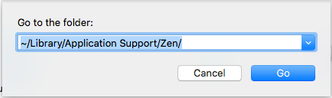
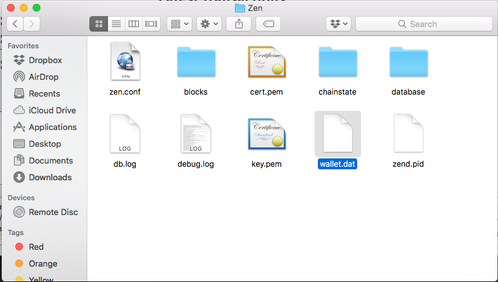
Enter the following: ~/Library/Application Support/Zen/Copy the wallet.dat file to a secure location, such as an encrypted thumb drive How to create an encrypted thumb drive in Mac OS using Disk Utility
|
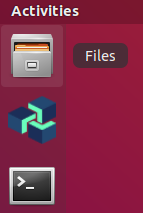
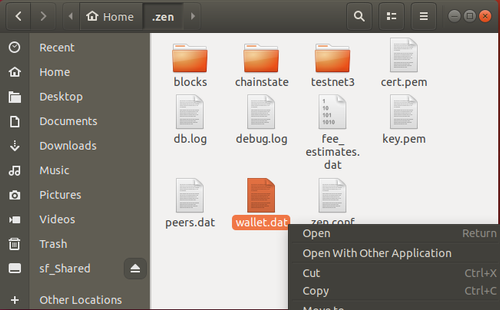
Close the wallet application if it is running Open the Files application Click the Files icon in the Favorites menu
Press Ctrl + L keys and enter the following: Copy the wallet.dat file to a secure location, such as an encrypted thumb drive How to create an encrypted thumb drive in Linux using Disks Utility
|
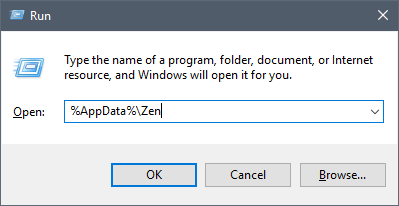
Close the wallet application if it is running Open the Run application Click start and type run (Windows 10) or press Windows Key + R
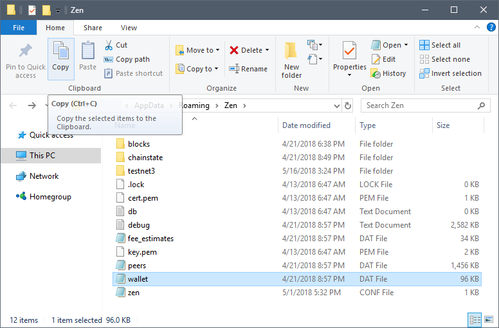
Enter the following: Copy the wallet.dat file to a secure location, such as an encrypted thumb drive How to create an encrypted thumb drive on Windows 10 Pro with BitLocker How to create an encrypted thumb drive using VeraCrypt
|
| 2 | Wallet Upgrade |
|---|
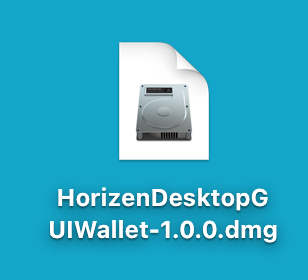
| 3 | This column does not apply for MacOS: El Capitan Support for El Capitan has been deprecated Close the wallet application if it is running Go to github repository https://github.com/HorizenOfficial/zencash-swing-wallet-ui/releases/latest Find Installing the Horizen Desktop GUI Wallet on Mac OS Download the .dmg installer file:
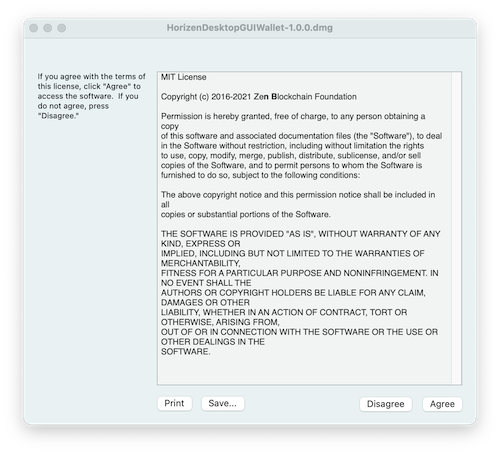
Double-click .dmg file and acknowledge MIT license:
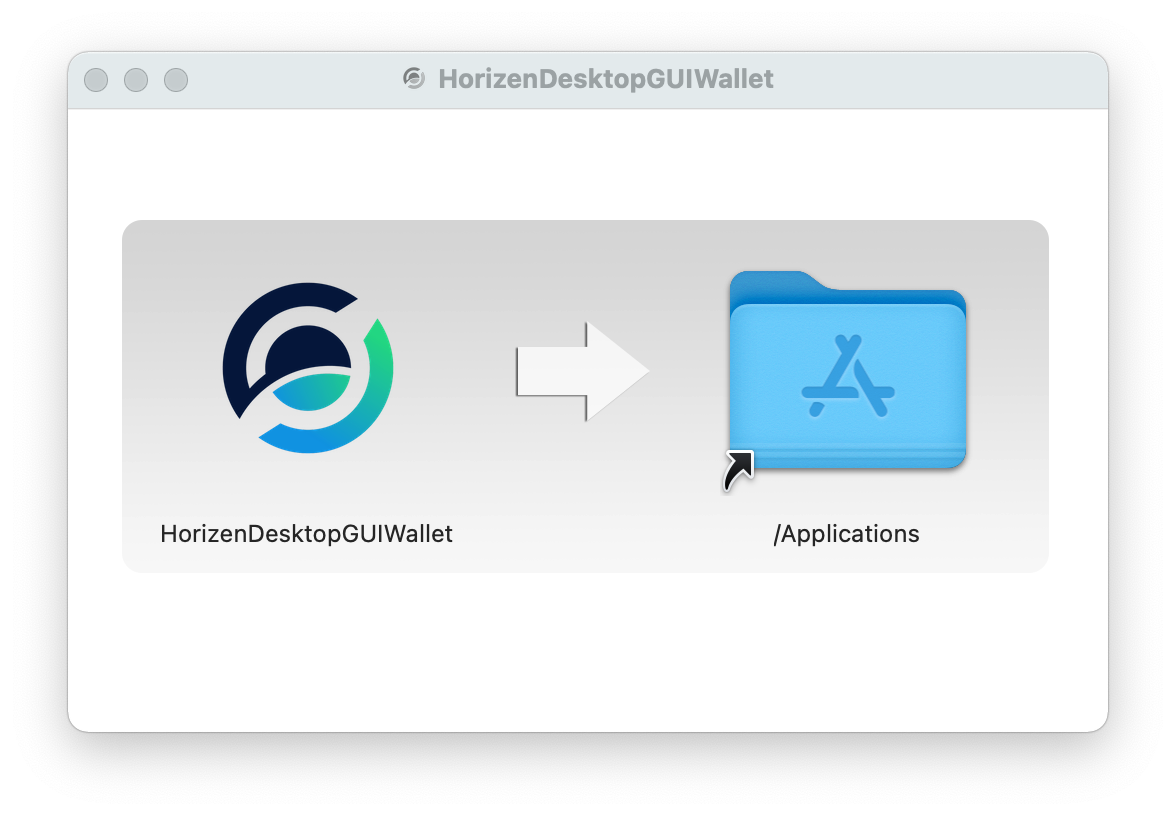
Drag HorizenDesktopGUIWallet app to /Applications
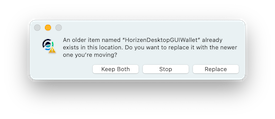
Allow replacement.
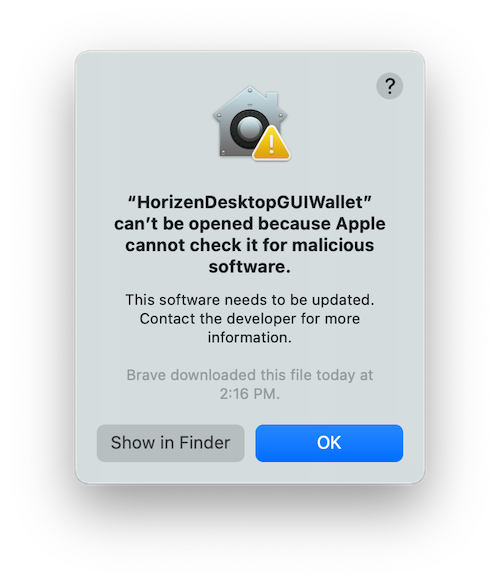
You may receive this message:
Click Show in Finder
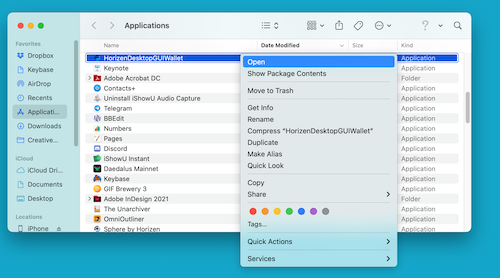
Control-click on the HorizenDesktopGUIWallet app (right0click if you have two-button mouse) and Open
|
Close the wallet application if it is running Launch Terminal Update the apt cache Install zen, this will upgrade the zend daemon if a new version is available sudo apt-get install zen -yInstall GUI Wallet sudo apt-get install zencash-desktop-gui-wallet -yLaunch HorizenWallet
|
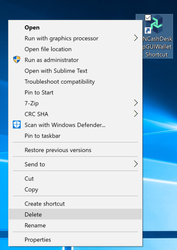
Close the wallet application if it is running Remove any existing shortcuts Desktop shortcuts Right click the existing desktop shortcut Select `Delete`
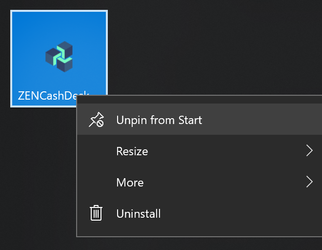
Start menu shortcuts Open the start menu Right click the shortcut Select `Unpin from Start`
Go to github repository https://github.com/HorizenOfficial/zencash-swing-wallet-ui/releases/latest Follow instructions per Installing the Horizen Desktop GUI Wallet on Windows
|
| 4 | Wallet Troubleshooting - Common Errors & Solutions |
|---|
| 5 | Error:A general unexpected critical error has occurred: error: couldn't connect to server: unknown (code -1) (make sure server is running and you are connecting to the correct RPC port) See the console output for more detailed information! | Error:A general unexpected critical error has occurred: error: couldn't connect to server: EOF reached (code 1) (make sure server is running and you are connecting to the correct RPC port) See the console output for more detailed information! | Symptom:
Balances are shown incorrectly with 100% synced blockchain. |
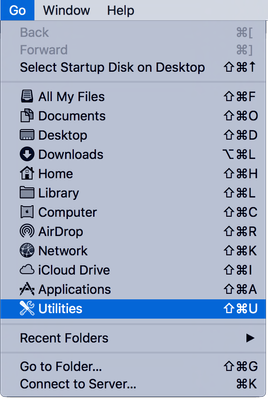
| 6 | Backup the wallet.dat, using the instructions in the Wallet Backup instructions above Launch Terminal From the Finder Open the Utilities Folder
Open Terminal
Re-Scan your blockchain Paste/Enter the following into your terminal /Applications/HorizenDesktopGUIWallet.app/Contents/app/zend --rescanPress 'Ctrl + C' to exit the zend daemon after re-scanning is complete
Open your HorizenWallet and it should load Note the progress of the Blockchain synchronization in the lower right hand corner
If this does not solve your error, continue to the next step
Obtain a copy of the debug.log and attach it to a ticket on support.horizen.io debug.log - Full Client Swing Wallet - Troubleshoot
| Backup the wallet.dat, using the instructions in the Wallet Backup instructions above Launch Terminal Re-Scan your blockchain Paste/Enter the following into your terminal Press 'Ctrl + C' to exit the zend daemon after re-scanning is complete
Open your HorizenWallet and it should load Note the progress of the Blockchain synchronization in the lower right hand corner
If this does not solve your error, continue to the next step
Obtain a copy of the debug.log and attach it to a ticket on support.horizen.io debug.log - Full Client Swing Wallet - Troubleshoot
| Backup the wallet.dat, using the instructions in the Wallet Backup instructions above Launch command prompt Hit 'Windows Key + R', type 'cmd' and hit <enter>
Change directories to the location noted earlier using the 'cd' command Re-Scan your blockchain Paste/Enter the following into your terminal Press 'Ctrl + C' to exit the zend daemon after re-scanning is complete
Open your HorizenDesktopGUIWallet and it should load Note the progress of the Blockchain synchronization in the lower right hand corner
If this does not solve your error, continue to the next step
Obtain a copy of the debug.log and attach it to a ticket on support.horizen.io debug.log - Full Client Swing Wallet - Troubleshoot
|